Test runs
A run records how cases were executed — who worked them, what result each got, and any reruns. Open a run from the runs list or from the History tab.
Work a run
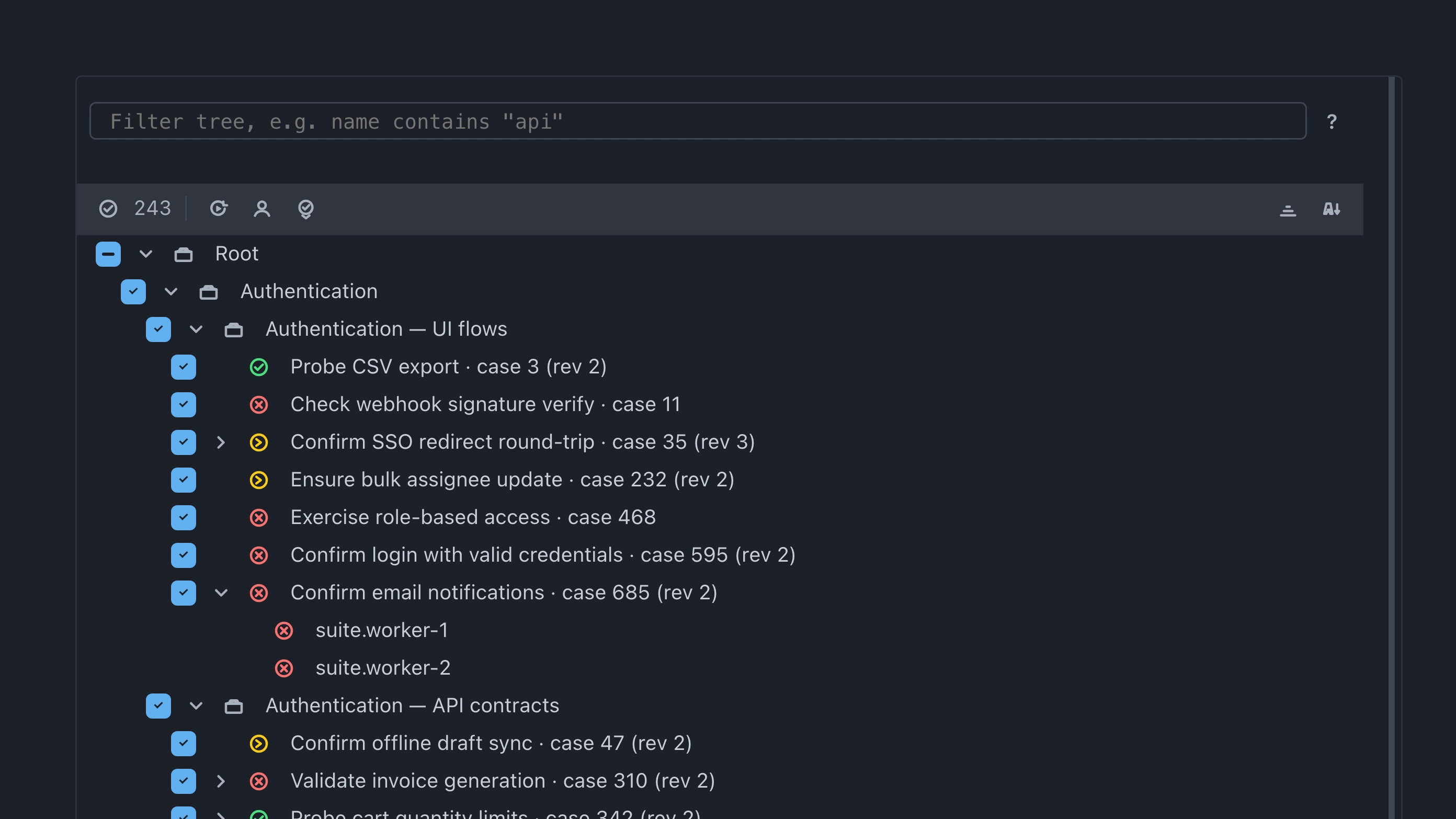
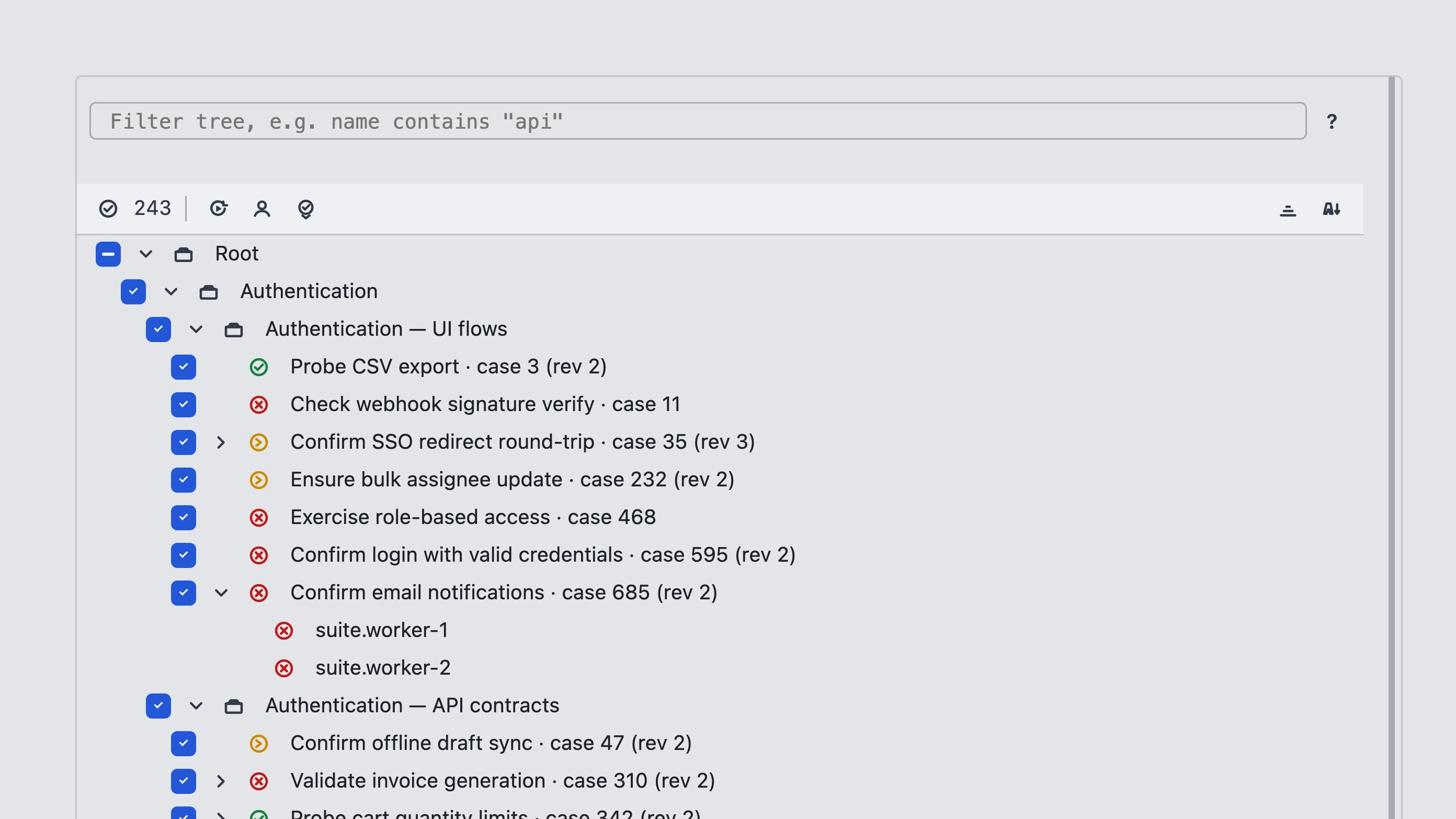
Select results in the run tree. Bulk actions cover:
- Assign — pick one or more members for the selected results. One member gets all of them; several members share them as evenly as possible
- Set result — apply a status to the selected results
- Rerun — rerun the selected results; reruns stay linked to the run
Changing a result’s status on a rerun updates that result’s status on the parent run.
Result card
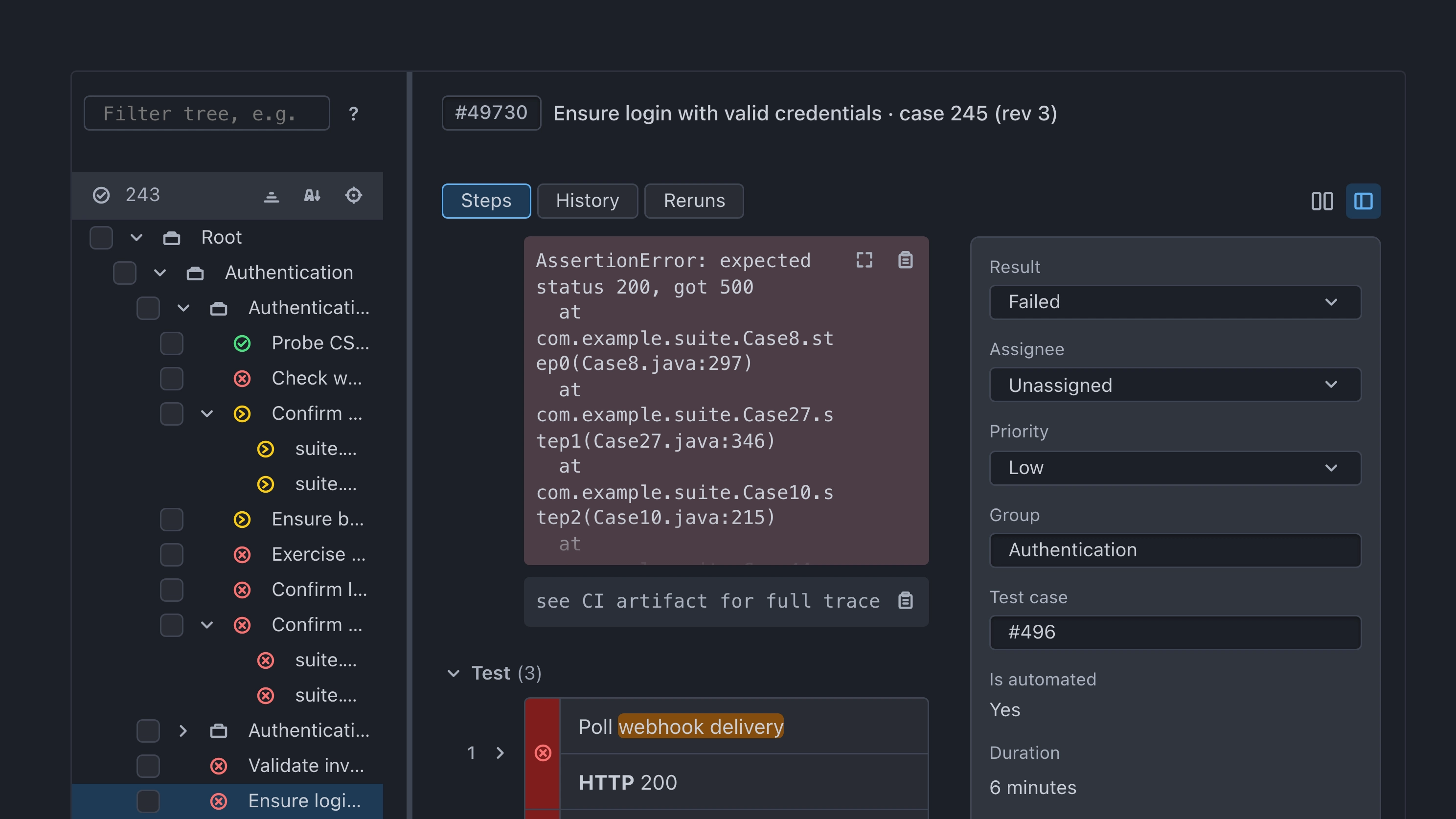
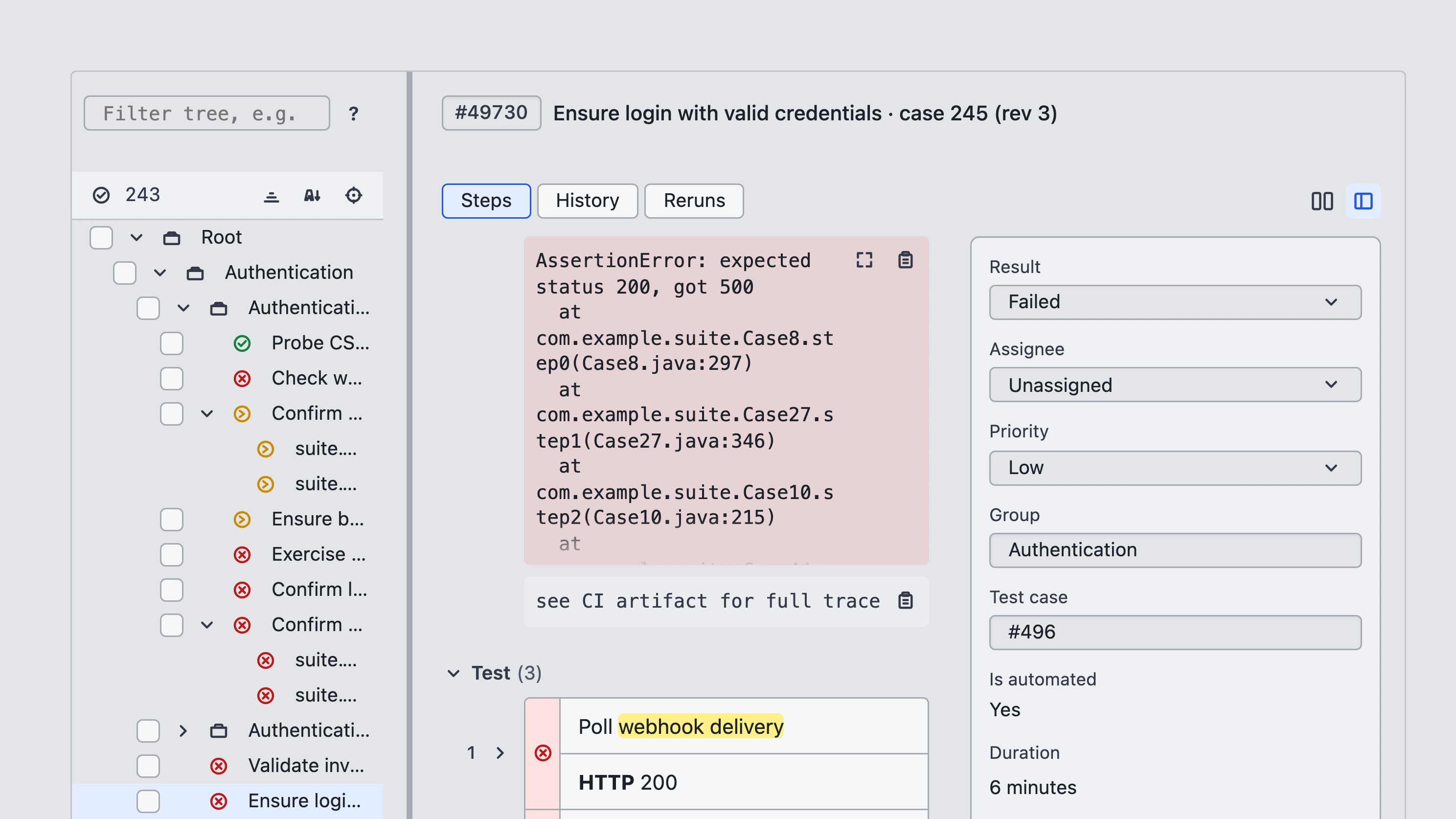
Open a result for steps and sidebar fields (result, assignee, and related case metadata). Result card tabs include Steps, Env, History, and Reruns.
Steps
On Steps, you can set a status on individual scenario steps. Step statuses and the result status stay linked both ways: changing a step updates the result, and changing the result applies that status across the steps. The card can show screenshots, files, and an error log. You can also write comments on the result card; comments support rich formatting.
For automated results, Compare steps matches the result steps with the linked test case.
Env
Env shows the environment variables the autotests ran with. The tab appears only for automated results that include at least one variable.
Lock
Lock a run seals that run, its results, and its reruns against changes until you Unlock. Locked runs are skipped by run retention.


Related: Test plans.