LDAP
Enable LDAP so users can sign in with accounts from your directory (Active Directory or another LDAP server). Local accounts stay available. The bootstrap admin and other local emergency-access passwords remain in Tracera.
Open Admin → LDAP.
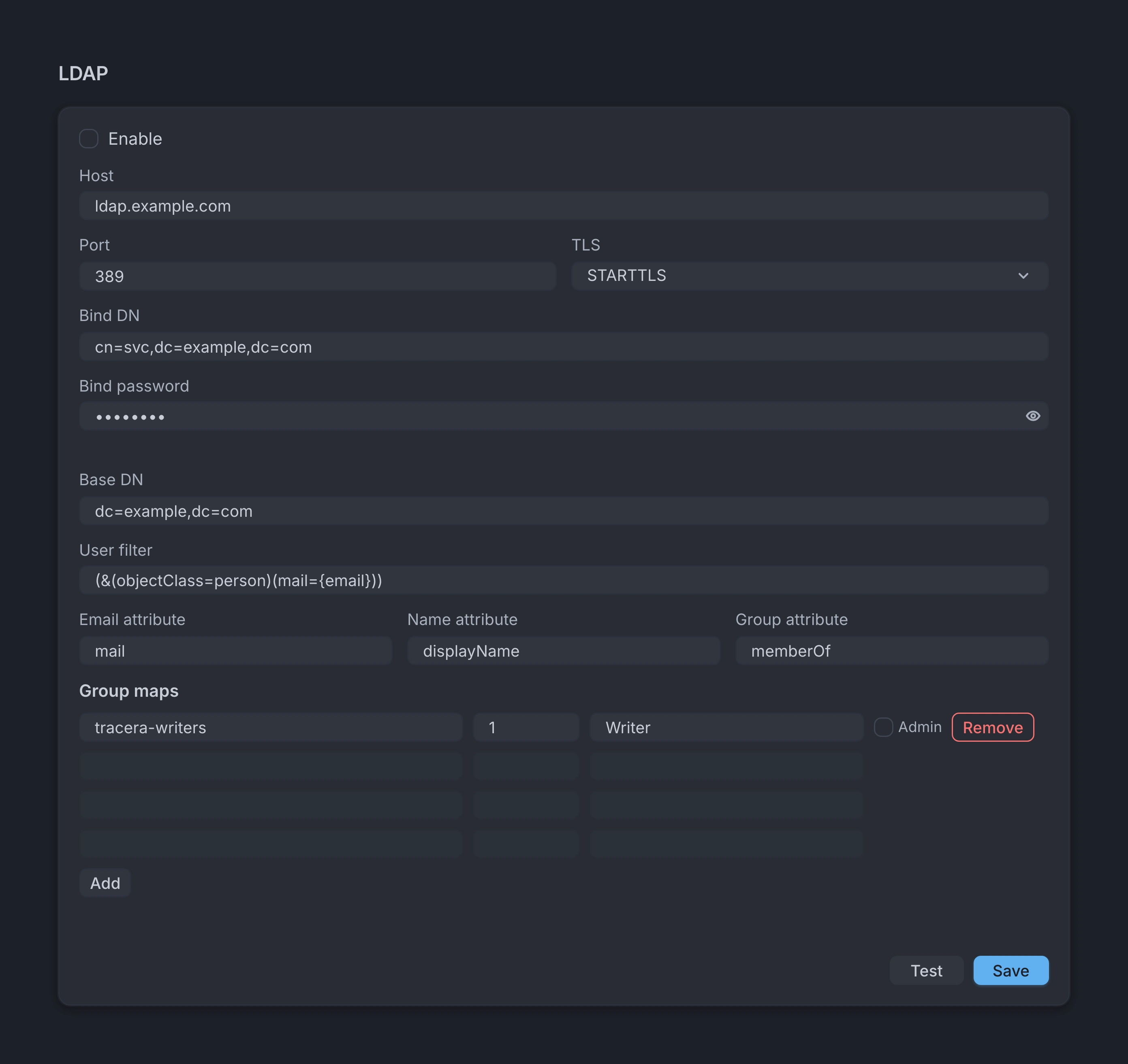
Connection
A DN (distinguished name) is the full path of an LDAP entry, for example
cn=svc,dc=example,dc=com.
- Enable — turns LDAP sign-in on
- Host, Port, and TLS — LDAP server address; TLS is
None, STARTTLS, or LDAPS - Bind DN — path of the service account used to search LDAP
- Bind password — password for the account in Bind DN. Leave blank to keep the current password
- Base DN — path where user search starts
- User filter — must include
{email}(replaced with the login email) - Email attribute, Name attribute, and Group attribute — defaults are
mail,displayName, andmemberOf
Before you enable LDAP the first time, click Test, then Save.
Group maps
Under Group maps, map an LDAP group to a project role:
- LDAP group — group name in LDAP
- Project id — numeric project id
- Role — project role id (
Owner,Writer,Reader,Autotest, or a custom role) - Admin — also grant instance Admin
On LDAP sign-in, Tracera applies roles from Group maps. If you invited someone or added them under Members by hand, that local role is left alone. The map does not overwrite it.
Sign-in rules
- Local users with a Tracera password keep password login. That email cannot also sign in through LDAP
- On the first successful LDAP sign-in, Tracera creates the user. Password change and restore in Tracera are not available for that account
- If you turn LDAP off, users without a Tracera password cannot sign in until LDAP is on again. Users with a Tracera password can still sign in
Related: Roles and access.